Home Page
When first navigating to the site, you will be navigated to the homepage. Logging in is not necessary to view some of the items on the site, and you will be able to go to the About, Communities, Categories, Browse Digital Heritage, Browse, Collections, and Dictionary tabs.
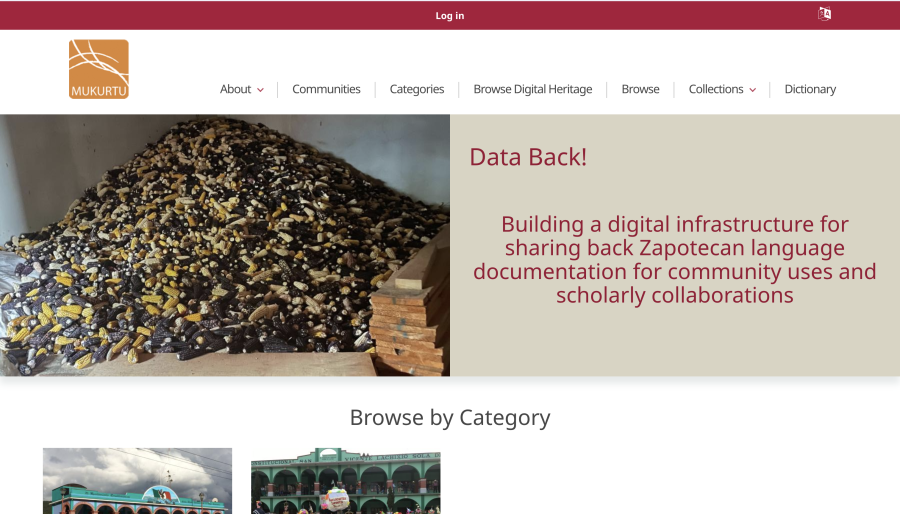
However, depending on the protocols set up on the site, some of the information and content will not be visible until you log in or have community member permissions.
The home page features a general description of Data Back and the purpose of the project, featured content on the site (e.g. certain dictionary words or digital heritage items), an option to browse by community, and an option to browse by map and location. You can set the language to Spanish by clicking the block with the letter ‘A’ at the right side of the red bar at the top of the screen.
Language Switcher
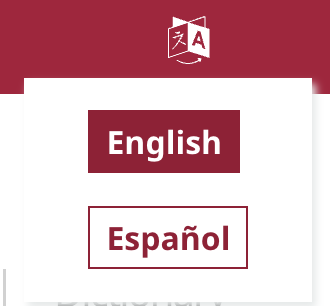
To switch the language that your site is displayed in, click the icon with the letter ‘A’ on it in the upper right in the red navigation banner atop each page.

Clicking this button will show the languages that the site can be displayed in. Simply select your preference here by clicking on one of the languages. The default language for the site is English.
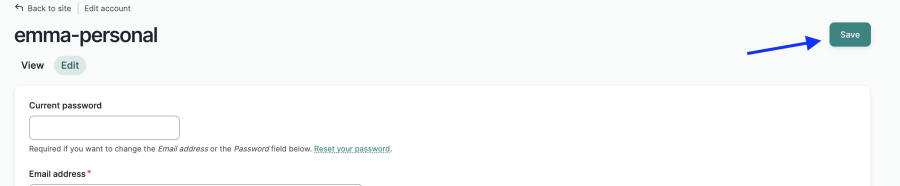
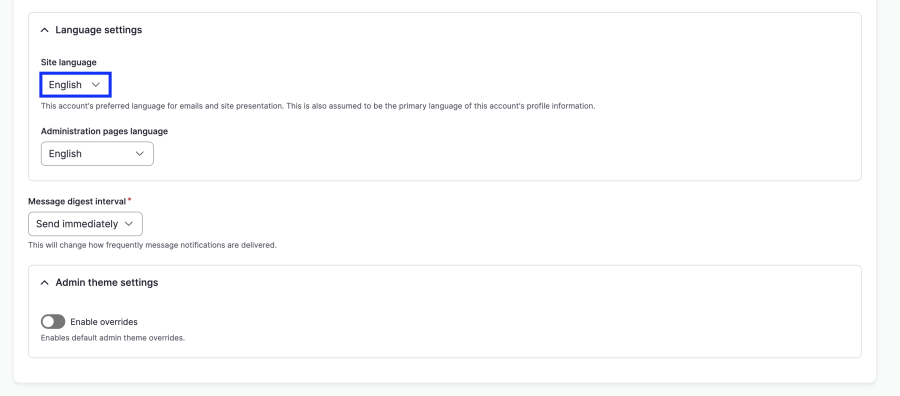
If you have an account and want to set it so that the site always displays in Spanish by default for you, go to Edit Profile and set the Site language and Administration pages language to “Spanish” and click “Save” (step 3b).
Sign Up / Creating an Account
Currently on the site, there is no public form to create an account and sign up. If you wish to have an account, reach out to a community member or a site administrator and they will create an account for you. You may contact Mark Sicoli marksicoli@virginia.edu.
Logging In
- Click the “Log in” button in the red banner at the top of the page. This red banner will be visible on every page, so you do not need to be on the homepage to log in.

- Enter your login credentials (username and password) and click the red “Log in” button at the bottom of the form.
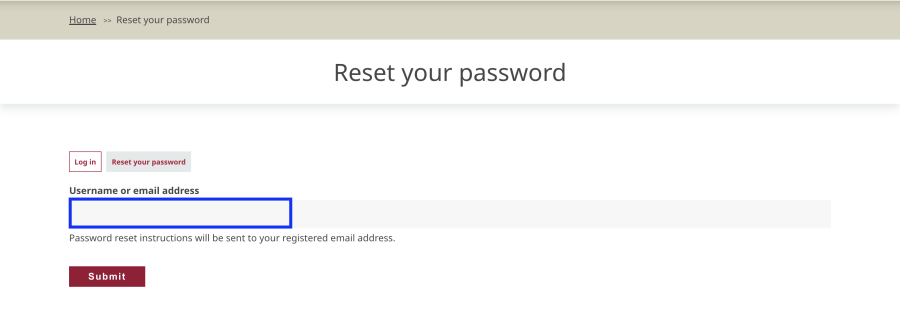
- If you forget your username and/or password, click the “Reset your password” button.
- Enter either your username or email address associated with your account and click “Submit.” If there is an account associated with either that username or email address, you will get password reset instructions sent to your email.
Mukurtu Dashboard
To navigate to the Dashboard, click the "Dashboard" button in the red banner at the top of the page.

The Dashboard provides quick links to:
- Manage my account
- My drafts (content or comments you created that are not published yet)
- Personal collections
- Recent content
- Mukurtu User Manual
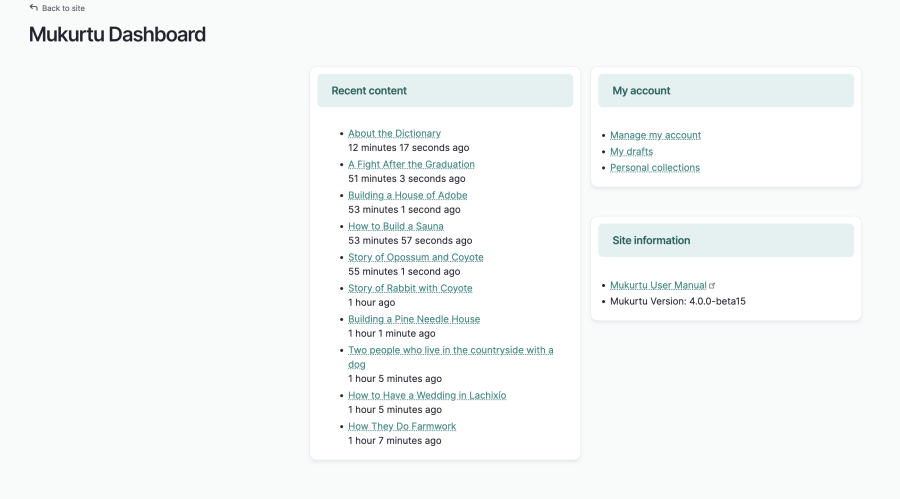
To get back to the home page, click the “← Back to site” button in the upper left.

Main Pages
The main navigation banner includes: About, Communities, Categories, Browse Digital Heritage, Browse, and Dictionary.
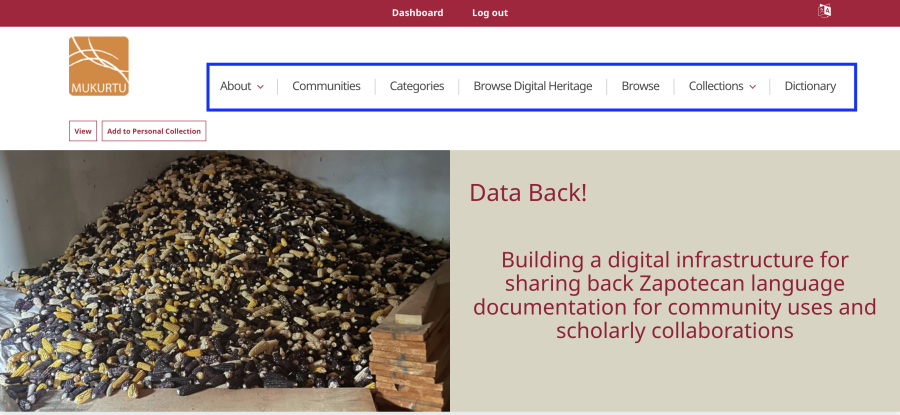
This navigation banner can be found on every page of the site. Each item in it contains the link to the corresponding page, and will navigate the user to said page.
About
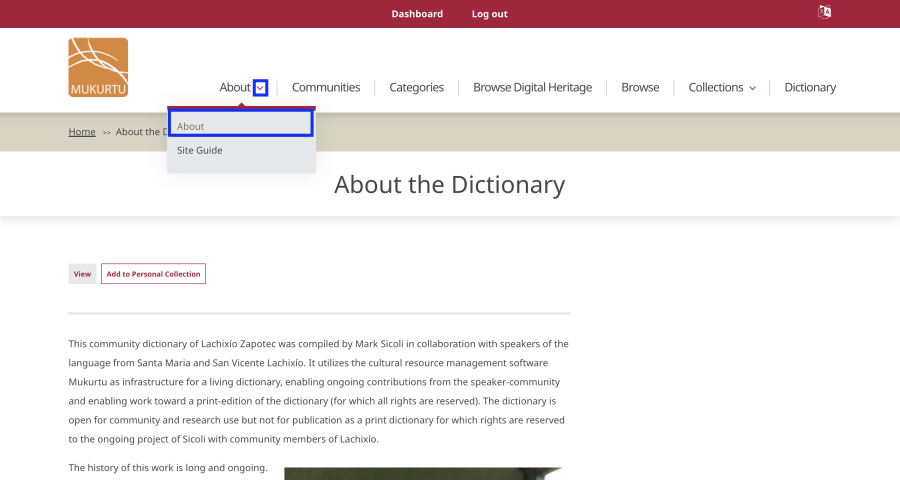
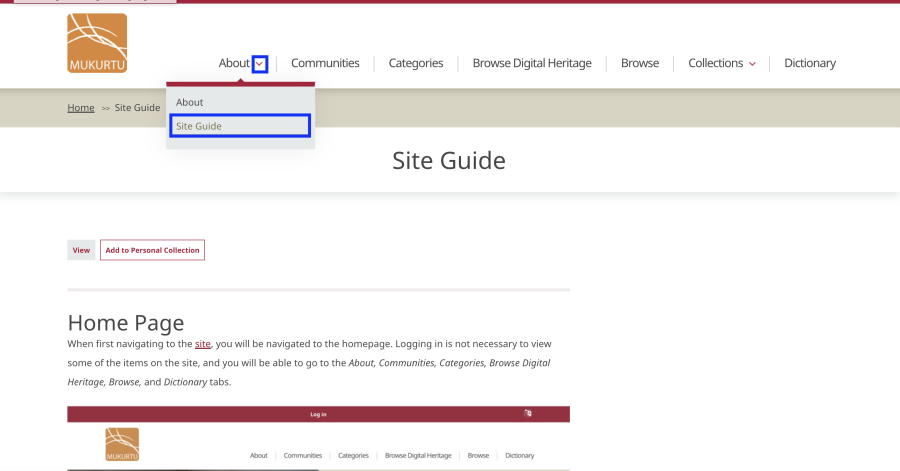
The About page provides details about the site and the Data Back! project. To get here, either click the About tab dropdown > About link or go directly to https://zapotec-chatino.iath.virginia.edu/dictionary/basic-page/about-dictionary.
Site Guide
The Site Guide provides navigational information for users and is a resource to help new users learn what the site has to offer and how to find specific information. To get to this guide (this current article), either click the About tab dropdown > Site Guide link or go directly to https://zapotec-chatino.iath.virginia.edu/dictionary/en/site-guide.
Communities
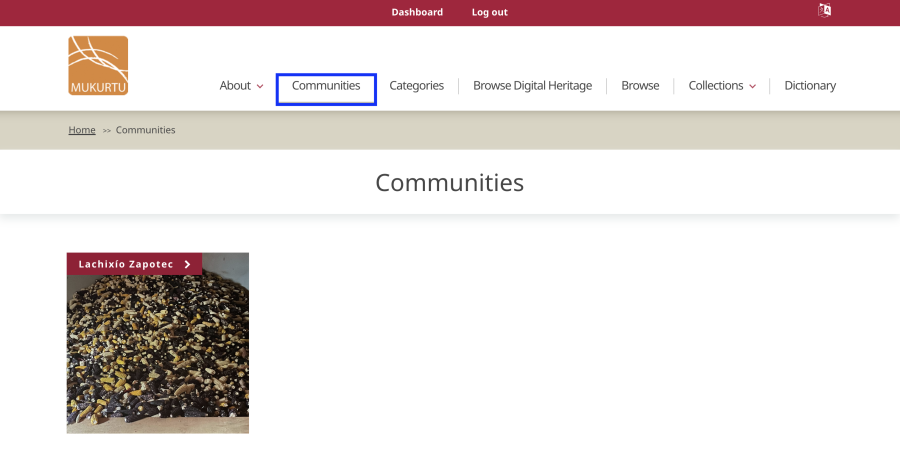
The Communities page will list all of the existing Communities on the site. To get here, either click the Communities tab or go directly to https://zapotec-chatino.iath.virginia.edu/dictionary/communities.
To see more information on each community, click on the community name. Each community will have images and details specific to them, and all of them will have a list of the cultural protocols and content associated with the community.
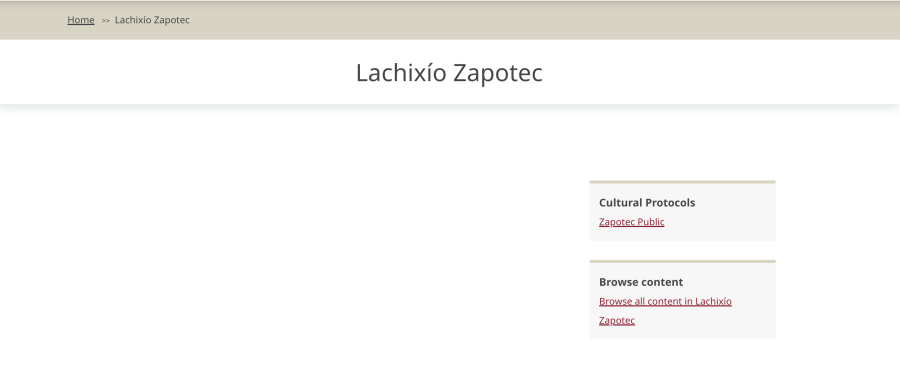
For more information about a cultural protocol, follow the links in the Cultural Protocols section.
Categories
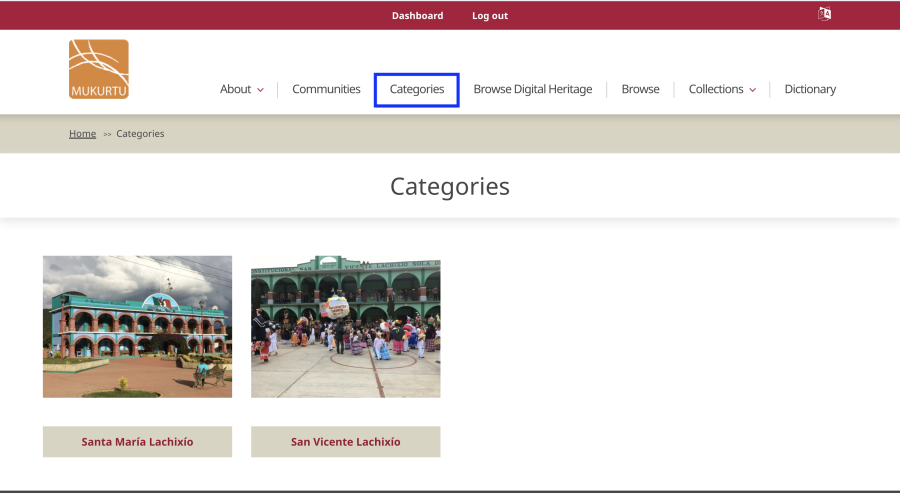
The Categories tab will direct you to a list of all of the categories on the site. Alternatively, to get here, go to https://zapotec-chatino.iath.virginia.edu/dictionary/categories.
Browse Digital Heritage
The tab Browse Digital Heritage takes you to a list of all of the Digital Heritage items on the site. Some of these items will not be visible for non-authenticated users (not signed in) or non-community members.
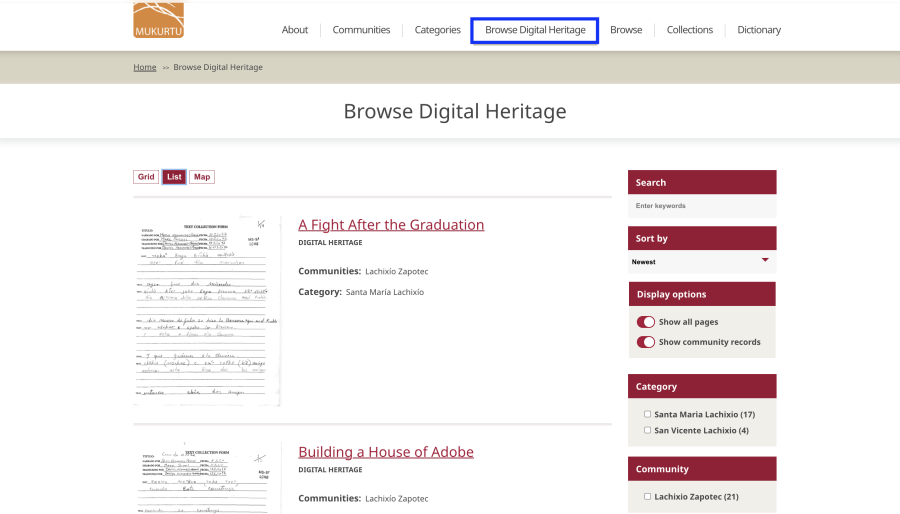
On the right of the page are different filters to search and browse through the Digital Heritage items. You can enter strings in the search bar and sort the results, or filter by:
- Keywords
- Category
- Community
- Cultural Protocols
- Media type
Click the red “Apply” button at the bottom of the filters to enable them.
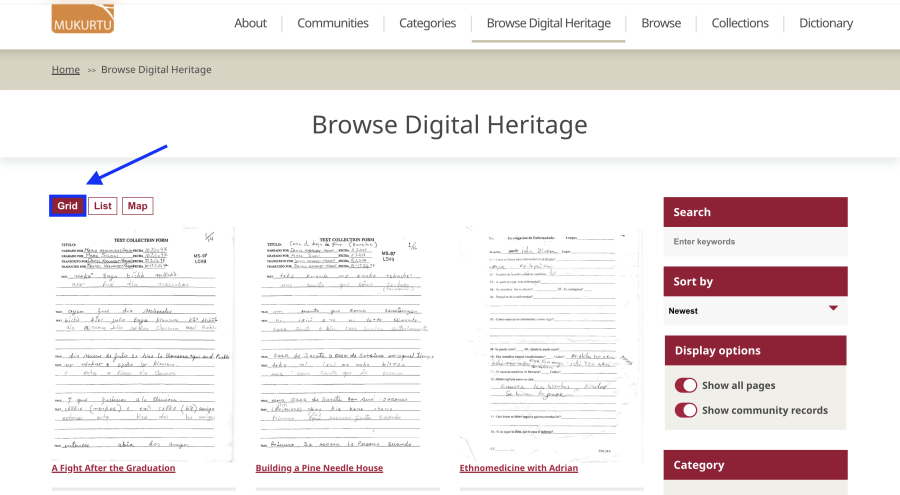
Additionally, you can view the Digital Heritage items in a grid view by clicking “Grid.” There is also an option to browse the content by viewing their locations on a map (click “Map”).
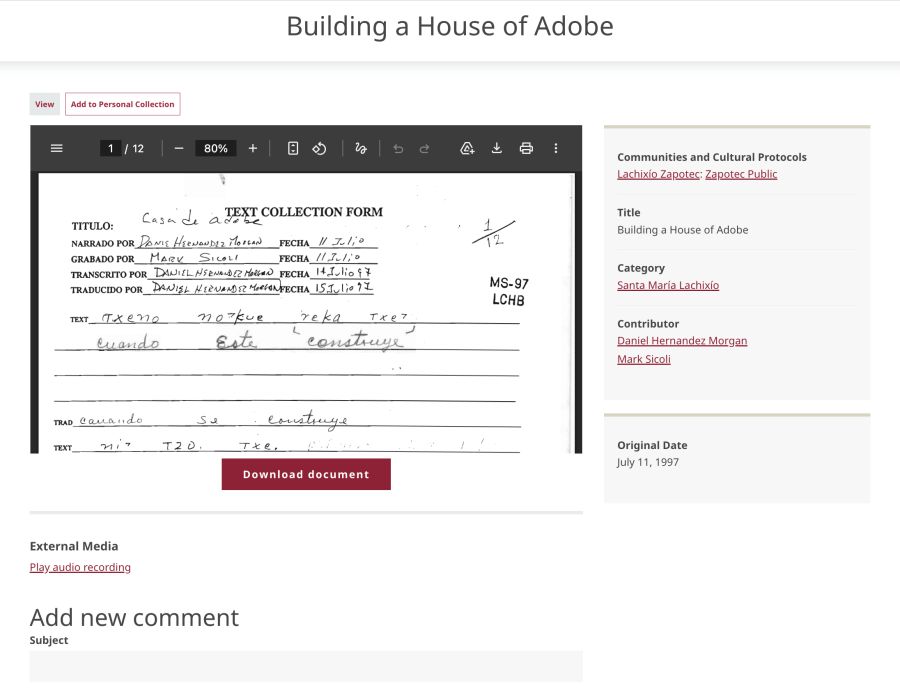
When viewing a Digital Heritage item, all of the metadata and information you are permitted to view (depends on the cultural protocols) are displayed. There will be an option at the bottom of the page to add a comment to the Digital Heritage item if there is something that you wish to discuss or have a question about.
Browse
To browse all of the content (Digital Heritage and Dictionary words) on the site, either go to the Browse tab or https://zapotec-chatino.iath.virginia.edu/dictionary/browse.
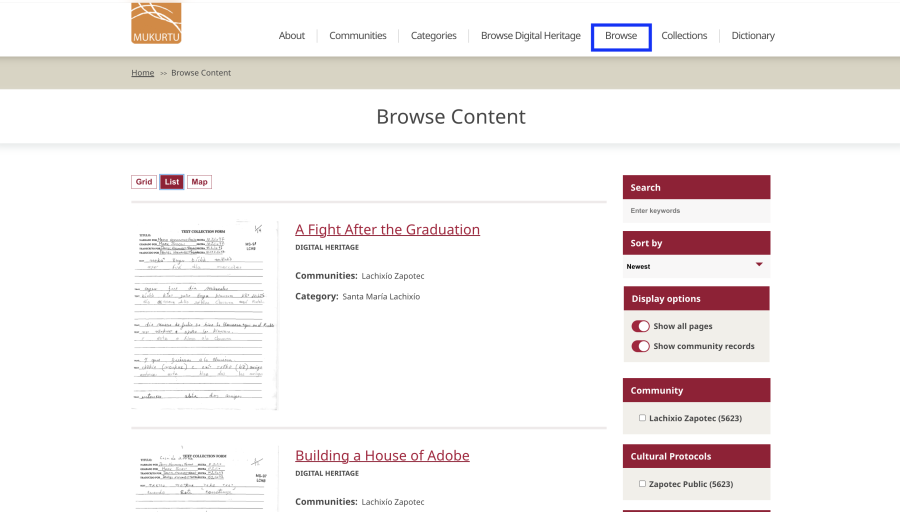
Similar to the Browse Digital Heritage page, there will be various filters to find the content you are looking for. You can enter a string in the search bar and sort the content, as well as use filters for:
- Community
- Cultural Protocols
- Content type
- Category
- Media type
- Keywords
Be sure to click the “Apply” button to see these changes enacted on the page.
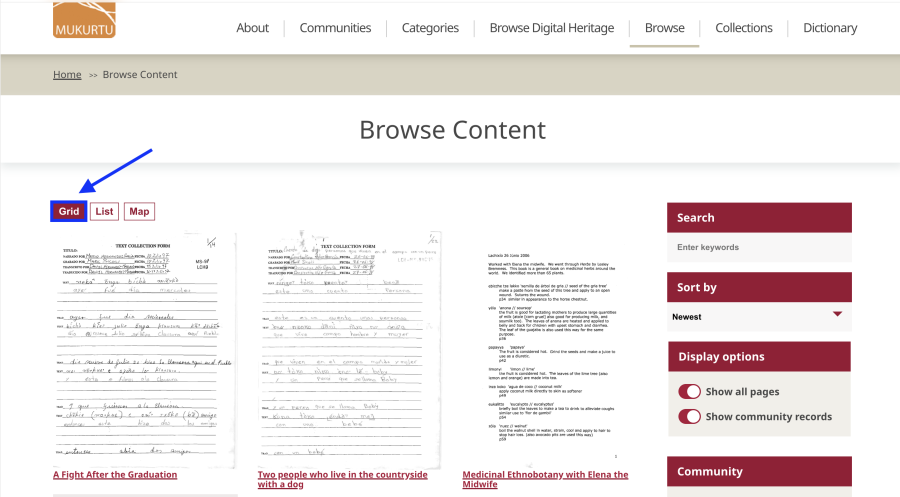
Also like the Browse Digital Heritage page, clicking “Grid” will display all of the content in a grid to more easily see everything, and “Map” will show an interactable map with location points to browse content by.
Collections
To view site Collections or Personal Collections specific to your user account, either click the Collections tab dropdown > Collections link or go directly to https://zapotec-chatino.iath.virginia.edu/dictionary/en/collections.
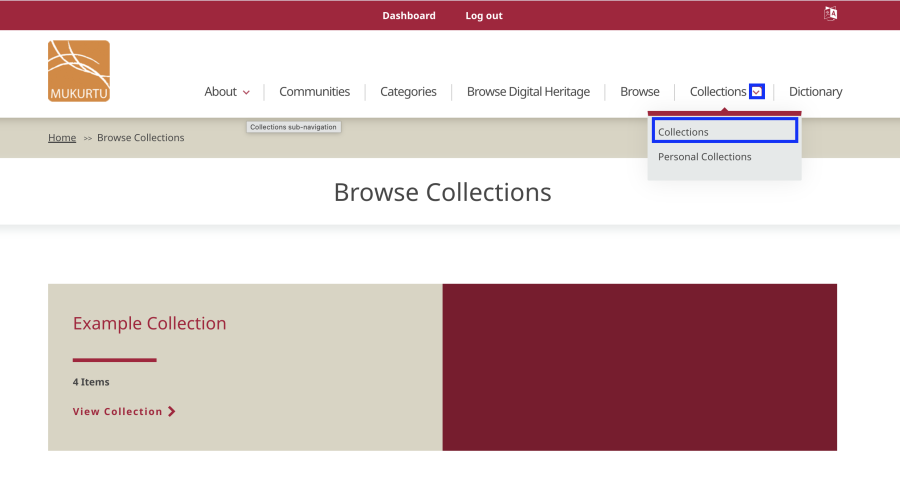
Collections provide users with a more curated or guided experience of the site's content. Site curators may create Collections to arrange content in ways to help give more comprehensive context for that content.
Personal Collections
Unlike Collections, Personal Collections are editable by users. Personal Collections are merely Collections where users can add content (e.g. Digital Heritage items and Dictionary Words) so that they can easily navigate there later, or create a curated list of resources to share with students. Personal Collections can be public or private.
To add items to your Personal Collections, you can click the Collections dropdown > Personal Collections link, go through the Mukurtu Dashboard, or add individual content to a collection when viewing an item.
From the Collections Dropdown
Click the Collections tab dropdown and then click Personal Collections (https://zapotec-chatino.iath.virginia.edu/dictionary/en/user/personal-collections).
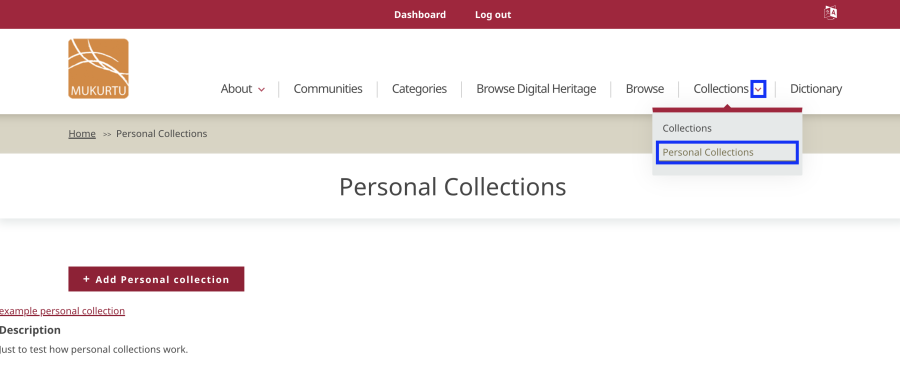
- This page will show all of your existing Personal Collections as well as provide an option to create a new one.
- In the screenshot below, there are no current Personal Collections, so nothing is listed
- To add a new one, click “+ Add Personal Collection”
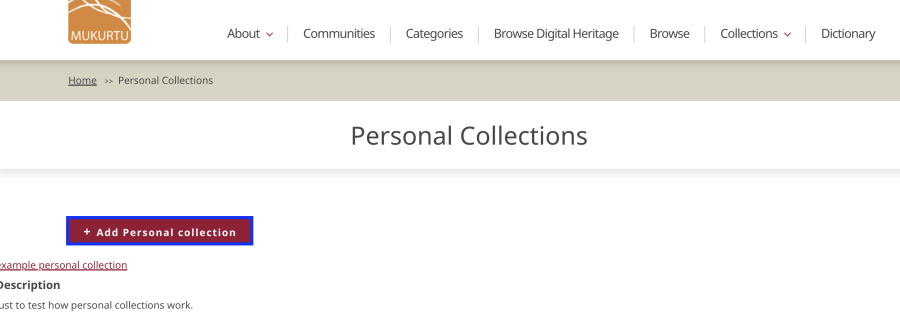
- You will be brought to a form to choose the settings for this new Personal Collection.
- The only required fields are Personal Collection name and Privacy Setting, but you can also add a Summary, Description, Personal Collection image, and Language.
- If you wish to add existing content to this Personal Collection, go to the Items tab and click Select Content.
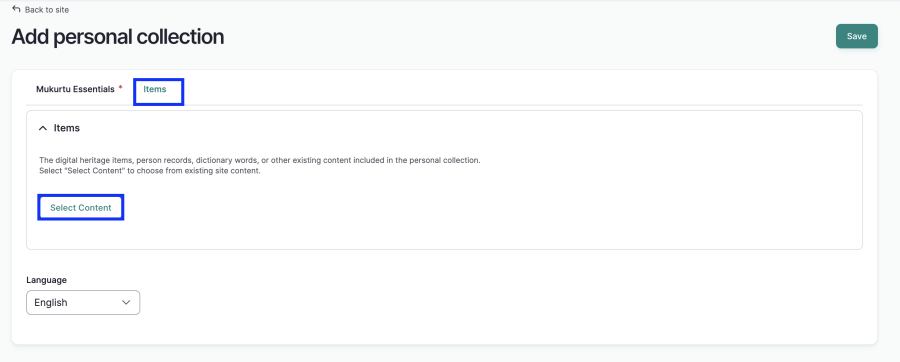
- A screen will appear on the page where you can select the checkboxes next to the content items you wish to add.
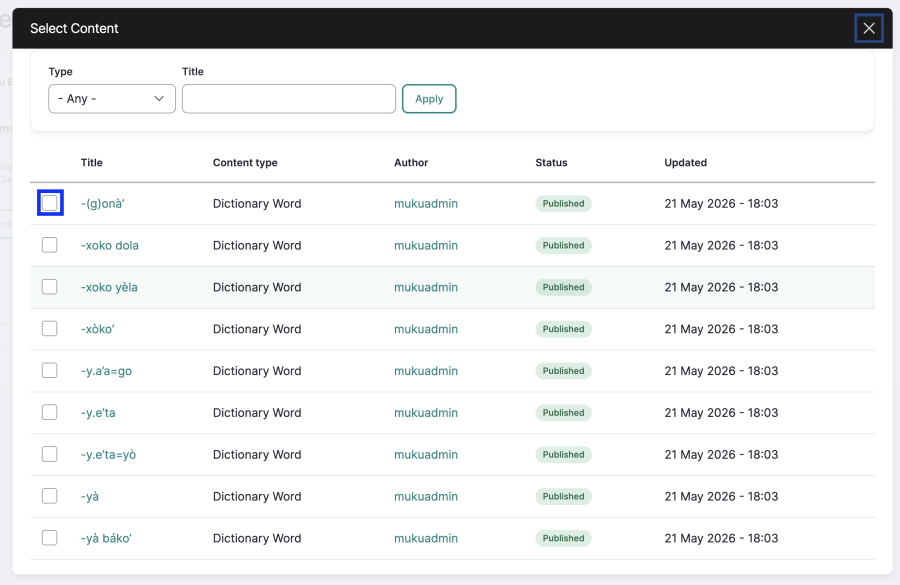
- Click “Save” before exiting to save all of your changes.
From the Mukurtu Dashboard
- Alternatively, go to the Mukurtu Dashboard (Dashboard in the red navigation banner or https://zapotec-chatino.iath.virginia.edu/dictionary/dashboard/mukurtu_dashboard)
- Click Personal collections in the My account section
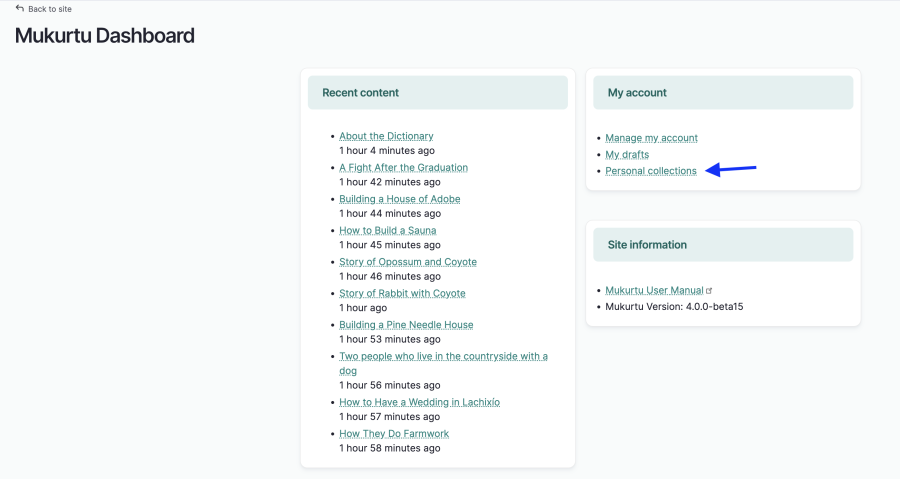
You will be brought to the same page where you can view all of your existing Personal Collections. For more information on how to add a new Personal Collection, follow instructions 2-7 above in the section "From the Collections Dropdown."
Individual Content
Once a Personal Collection exists and is created on your site, the normal avenue to add specific content to a Personal Collection is to view the desired content item and add it to a Personal Collection from there.
- Go to a page, Digital Heritage item, or Dictionary Word, and click Add to Personal Collection
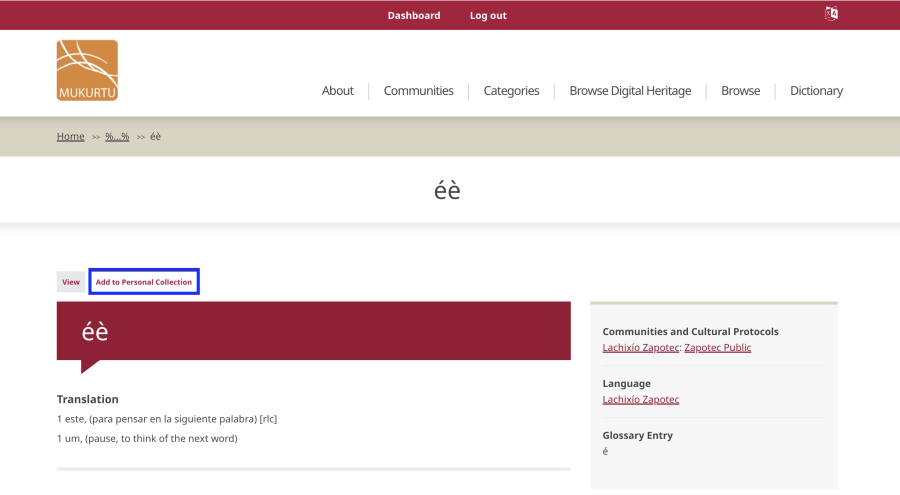
You will be brought to a form page where you can select which Personal Collection to add this item to. There will also be an option to create a new Personal Collection on this page, and the selected content item (in this case, tò’ná) will be a part of that collection.
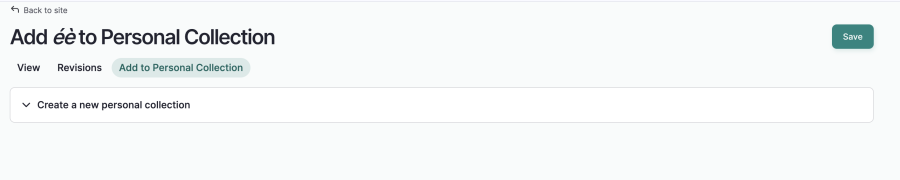
- Click “Save” before exiting
Dictionary
To get to the dictionary, either navigate to the Dictionary tab or go directly to https://zapotec-chatino.iath.virginia.edu/dictionary/dictionary.
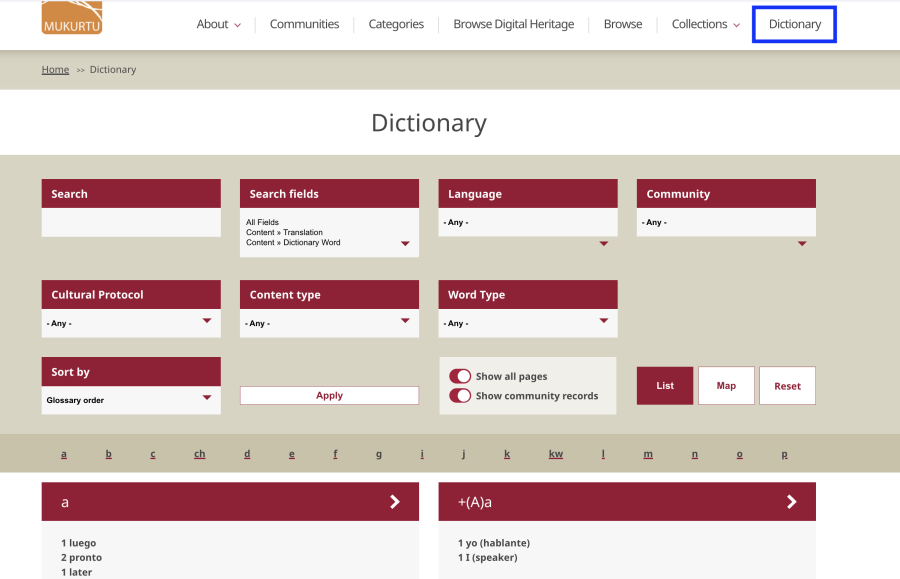
To search for a specific word, enter something in the Search bar and/or use filters for:
- Content type
- Cultural Protocol
- Community
- Language
- Word Type
This page will show a list of the different Dictionary Words in alphabetical order. The preview of each word will have its translation in both English and Spanish.
The bar above all of the words are all of the “letters” or glossary entries. Clicking on the glossary entry will make it so only the words beginning with the selected glossary entry will be displayed.

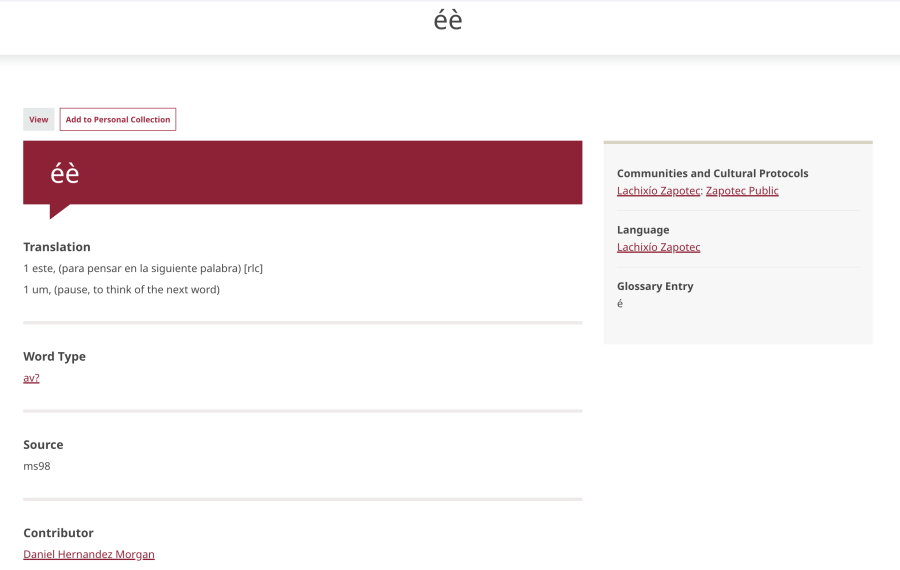
When viewing an individual Dictionary Word, much like for Digital Heritage items, all of the fields and associated information on it that you are permitted to see will be displayed.
Edit Profile
Go to the Mukurtu Dashboard and click Manage my account under the My account section
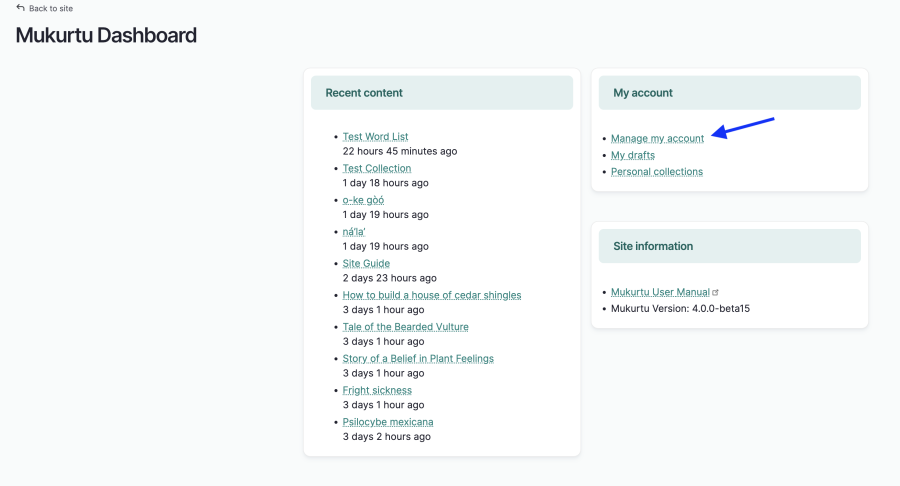
- Change any information or settings in the form
- The first half of the form is where you can change your password, email address, and display name
- The second half of the form is where you can set your preferences for the site language, administration pages language, message digest interval, and admin theme settings.
- The field site language is where you can indicate your preferred language so that the site automatically defaults to this language once you sign in
- Select “Spanish” for site language and administration pages language if you want the site to toggle to Spanish by default
- Click the green “Save” button in the upper right of the form before exiting